Capetti
This guide walks through connecting Capetti WineCap™ gateways to the platform using FTP file uploads. WineCap™ exports monitoring data as tab-delimited ASCII files and pushes them to an FTP server, which the platform then reads automatically.
Note: We recommend creating a Blueprint and your Sensors first, so that when you map the data source labels at the end of this guide, you have sensors to connect to.
1. Configure WineCapManager to push via FTP
Open the WineCapManager web interface and enable FTP export.
Connection
- Use FTP connection: Enabled
- Server name: Your FTP endpoint (hostname from the platform integration)
- Username / password: Credentials for that FTP server
- Remote directory: Target upload folder on the server
- Mode: Passive (recommended)
Synchronisation
- Transmission interval: Recommended 60 minutes (or as required for your project)
- Time reference: UTC (recommended)
- Force upload: Use once to confirm the gateway can reach the server
Use the FTP server details that you have set up for the platform integration. Once configured, the gateway will push updated files on the schedule you set.
2. Add a data connection
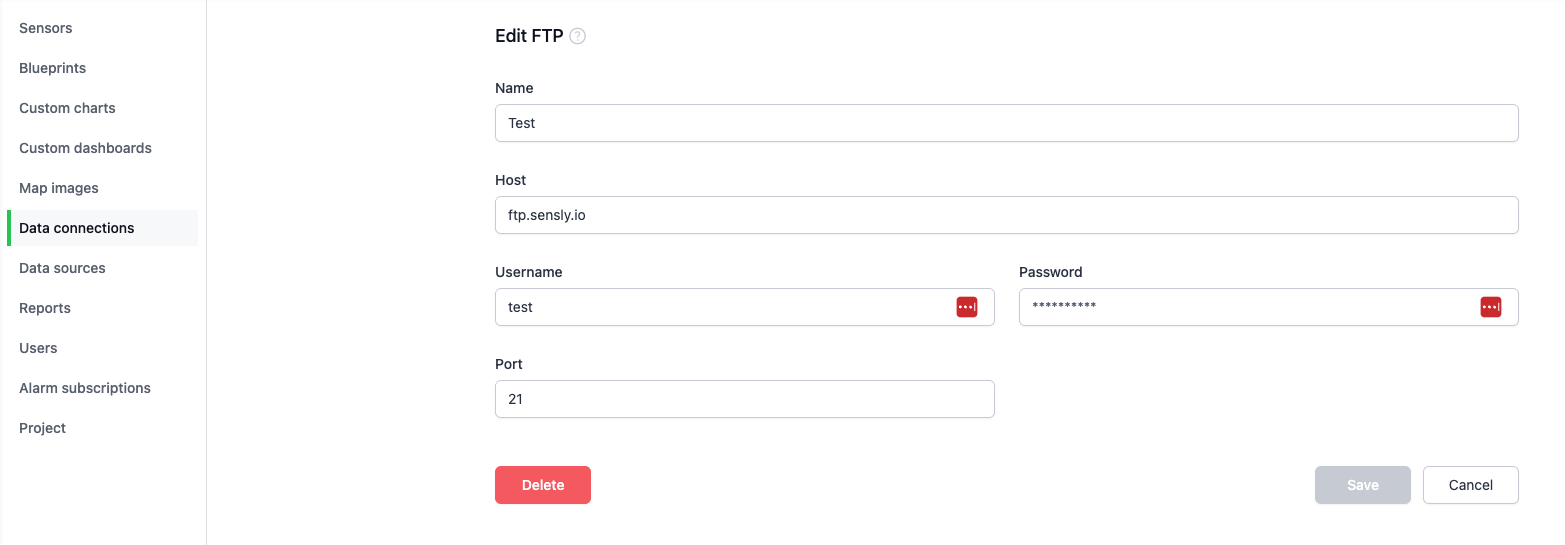
In the Sensly portal, add a data connection and choose FTP. Enter the FTP server credentials for the server where WineCapManager uploads its files.
3. Add a data source
Under Data sources, create a new data source using the FTP connection you created.
Specify the file path where WineCapManager uploads the data file.

Set the schedule for when to check the FTP server for updated files.

4. Map the file
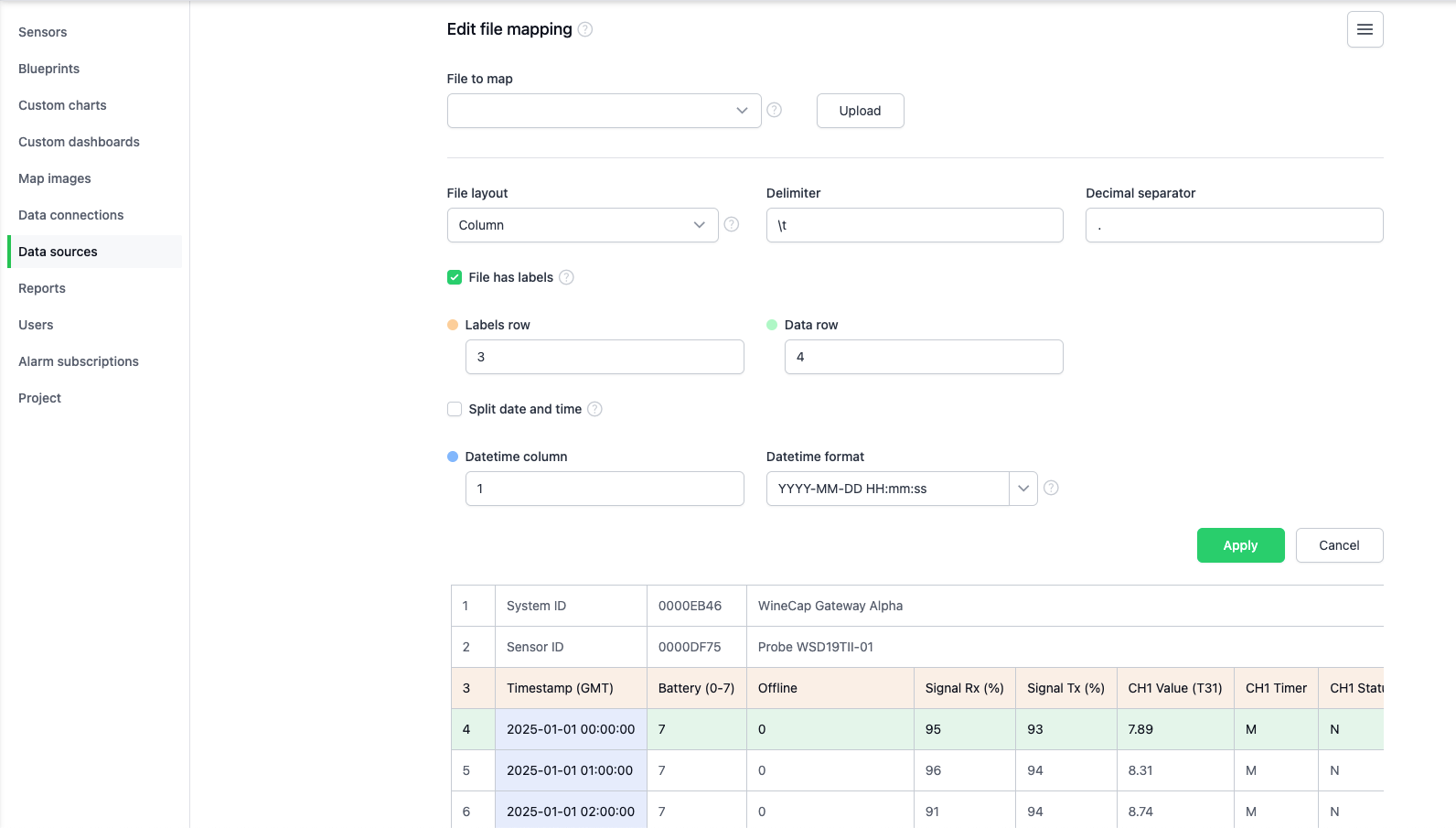
Configure the file by selecting the File to map from the directory. If only one file is found, it will be auto-selected.
Note: If additional files appear in the File to map dropdown that you do not want processed, update the File match string on the data source details page to filter them out.
WineCap exports are tab-delimited ASCII (often with a .csv extension even though columns are separated by tabs). The first three lines are metadata (for example system ID, sensor ID, and an optional third line); data rows start after that. Each subsequent row is one observation. There is no row of column names like a typical spreadsheet header.
Select the Labels row and Data row so that parsing matches your file: the Data row must be the first tab-delimited observation row (often row 4 if rows 1–3 are the metadata lines). If your export has no dedicated header row for columns, choose the label and data row values that match your file layout and the platform’s file mapping behaviour for your case.
Select the Datetime column (the timestamp is the first field in each data row); the Datetime format will be auto-populated but can be edited if needed. The notation for datetime formats is described in 5. Datetime format in Data sources.
5. Map the sensor inputs
Map the platform sensor inputs to the corresponding columns in the WineCap file (for example CH1–CH4 measurement columns for displacement, load, or other channels). If there are any labels that you do not need to ingest the data for, these can be left unmapped.
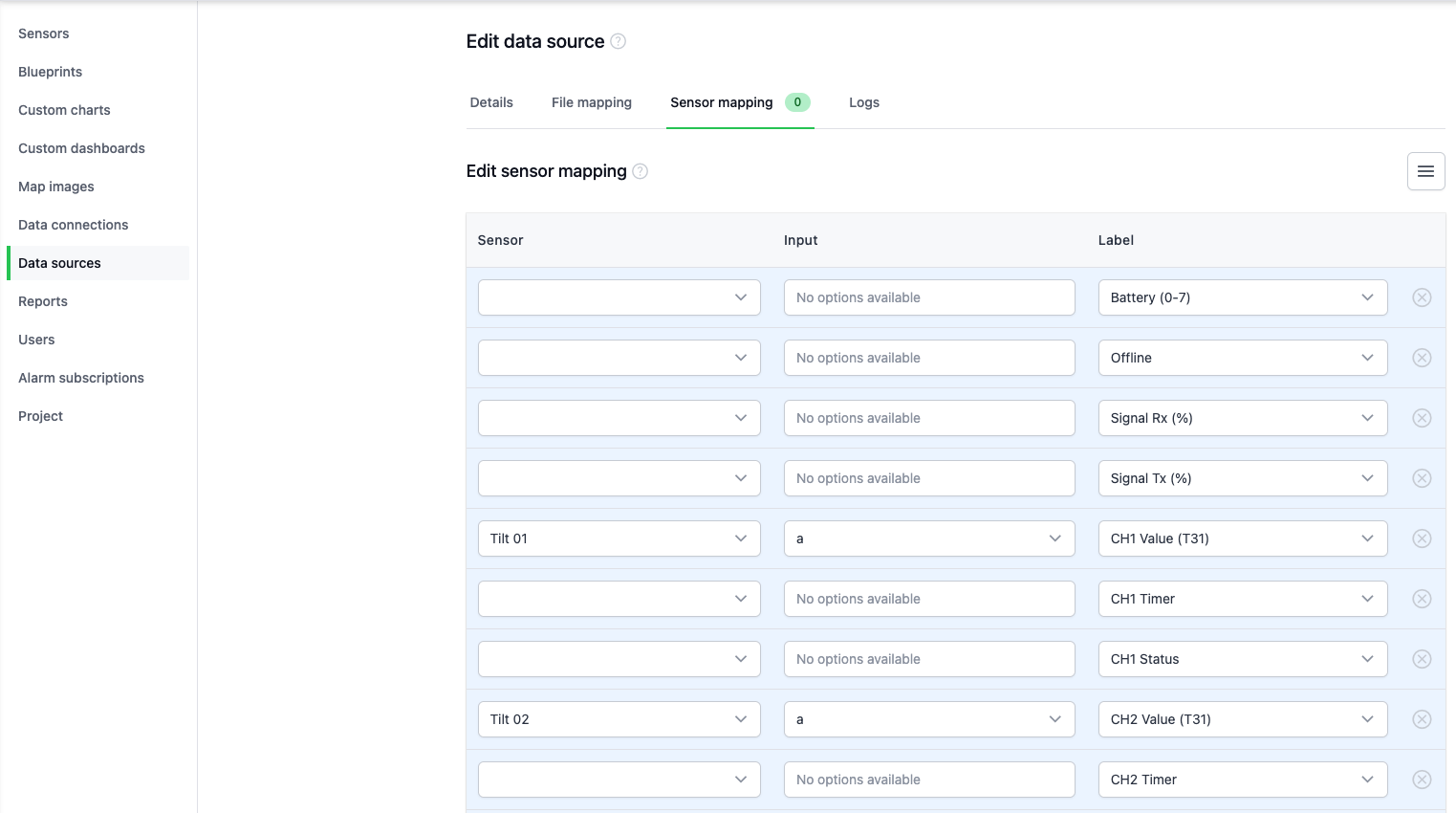
Once configured, the platform will automatically import new records from the uploaded files and update the sensor data.
Note: If additional sensors are mapped after a file has been processed, the data source will need to be re-run by reprocessing the data.
WineCap file format (reference)
Encoding is ASCII text, delimiter is tab (\t). Each data row has the following field order (after the three metadata lines):
| Field (order) | Description |
|---|---|
| Timestamp | UTC, YYYY-MM-DD HH:MM:SS |
| Battery | 0–7 (7 = full) |
| Offline | 0 = online, 1 = offline |
| Rx signal | Signal strength (%) |
| Tx signal | Signal strength (%) |
| CH1 value, CH1 timer, CH1 status | Channel 1 |
| CH2 value, CH2 timer, CH2 status | Channel 2 |
| CH3 value, CH3 timer, CH3 status | Channel 3 |
| CH4 value, CH4 timer, CH4 status | Channel 4 |
Status codes: N = normal, W = warning, A = alarm. Timer: M = measurement, T = event/threshold.
Channel types (typical)
| Channel | Type code | Description |
|---|---|---|
| CH1 | T31 | Analog input (e.g. pressure, load) |
| CH2 | T31 | Analog input |
| CH3 | T53 | Digital input (pulse/count) |
| CH4 | T24 | Internal/environment |
Special values
| Condition | Representation |
|---|---|
| Offline | Offline flag = 1 |
| No data | - |
| Signal loss | -128 |
Example data row (fields separated by tabs in the real file):
2026-02-17 16:14:04 7 0 100 100 5 M N 5 M N 5 M N 5 M N
Troubleshooting
File not ingested
- Delimiter must be tab, not comma.
- Row settings must skip the three metadata lines so the first parsed row is a real observation.
Missing or wrong values
- Confirm channel and column mapping against the field order above.
- Check whether the device was offline or reporting no data (
-) or signal loss (-128).
Incorrect timestamps
- Set the gateway time reference to UTC and verify the Datetime column and Datetime format in file mapping.