Worldsensing MQTT
This guide walks through connecting Worldsensing devices to the platform using the Worldsensing MQTT broker intergration.
Note: We recommend creating a Blueprint and your Sensors first, so that when you map the data source labels at the end of this guide, you have sensors to connect to.
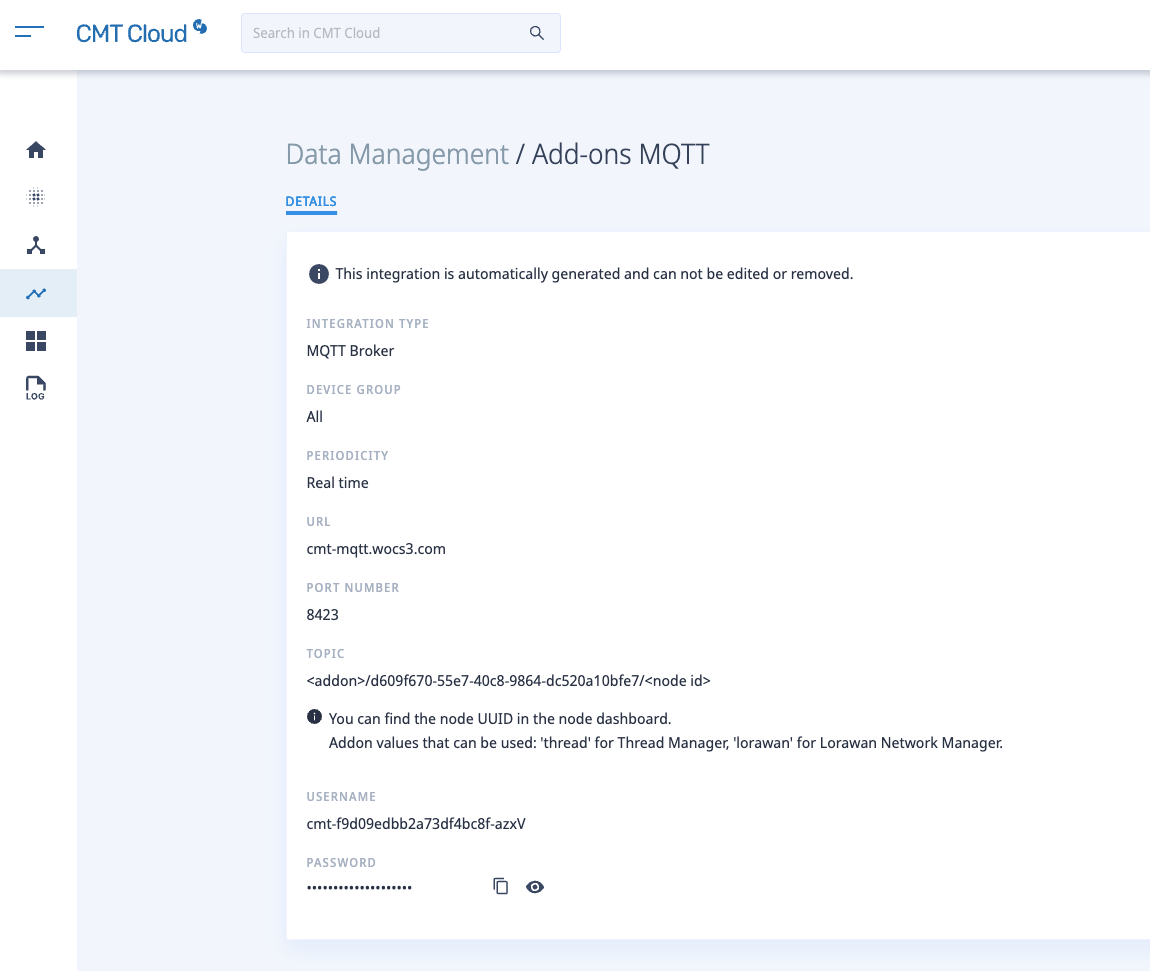
1. Retrieve the MQTT broker details from CMT Cloud
Log in to CMT Cloud (Worldsensing’s device management portal) and navigate to the Data Management section, then select your MQTT Broker integration.
2. Add a data connection
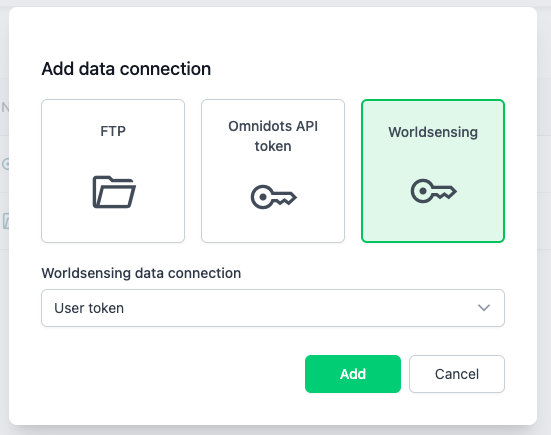
In the sensly portal, under Data connections, add a data connection and choose Worldsensing then select MQTT broker.
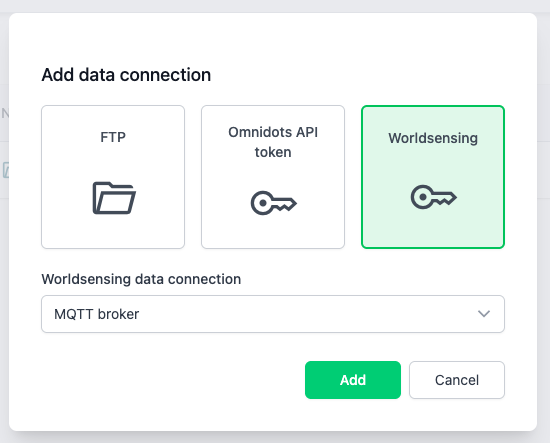
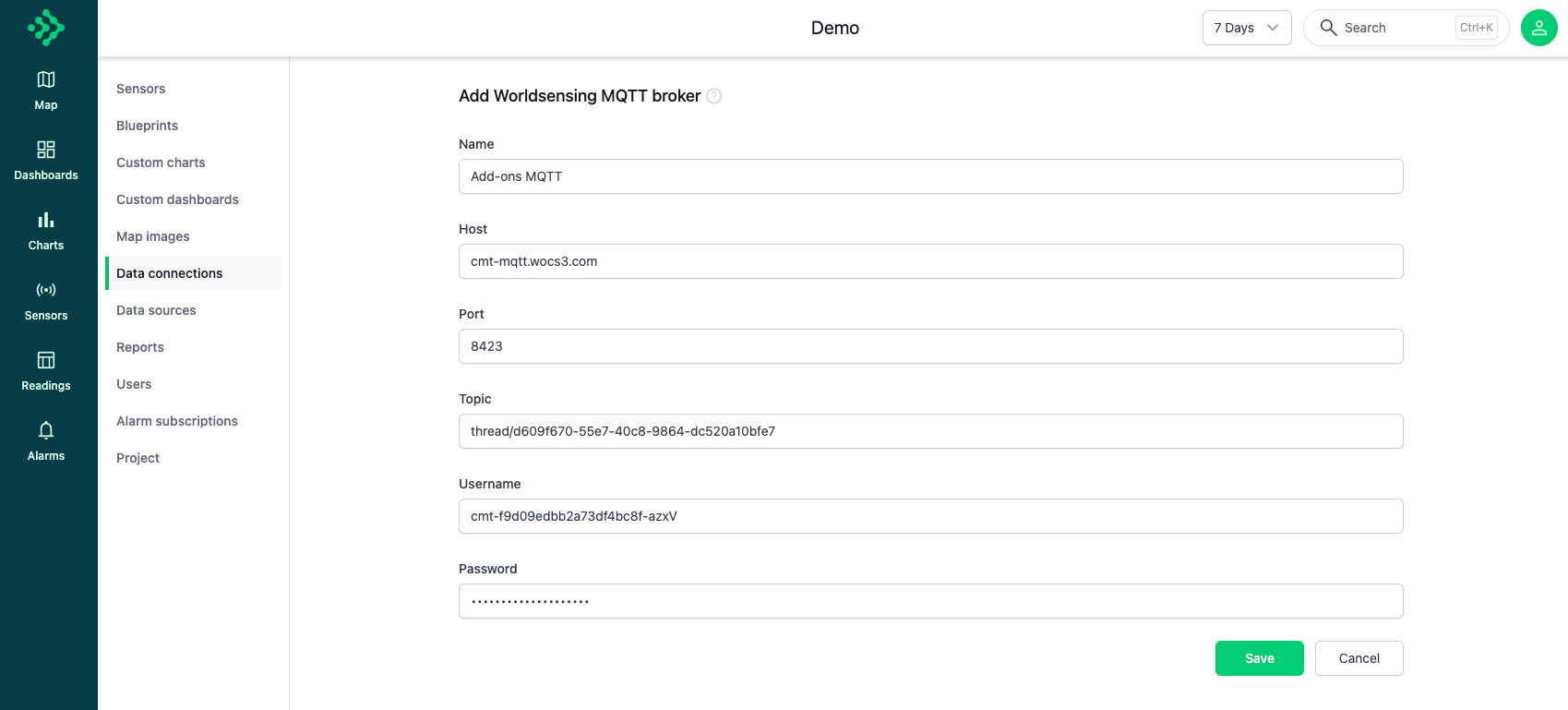
Enter in the details from the CMT Cloud MQTT broker, then hit Save. For the topic, replace <addon> with thread, and ignore <node_id> since it's handled by sensly.
Add a User token.
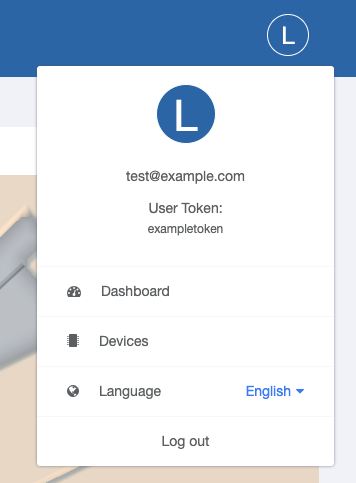
This token is the user token from Worldsensing's Thread Manager.
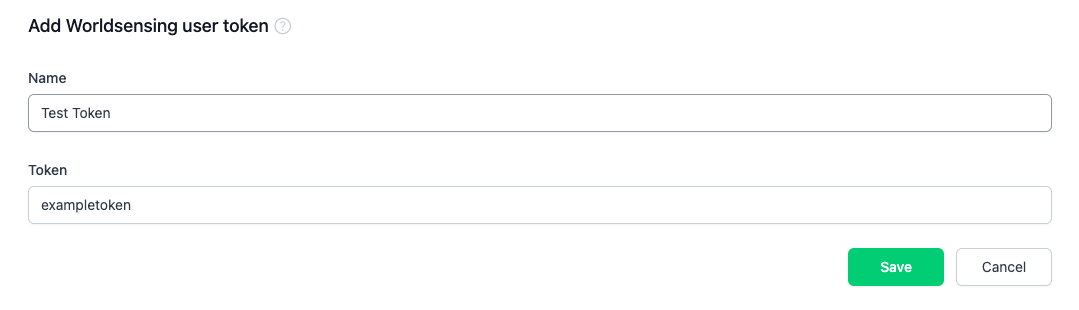
Enter the details into the sensly User token.
3. Add a data source
Under Data souces, add a data source and choose Worldsensing then select Worldsensing Thread.
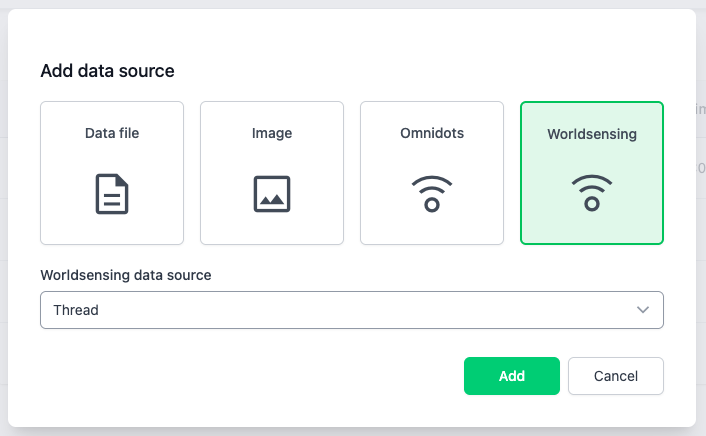
Specify the Serial number of the thread.

The thread serial number can be found in Worldsensing's Thread Manager.

Once you hit save, sensly will automatically connect to the MQTT broker.
5. Map the sensor inputs
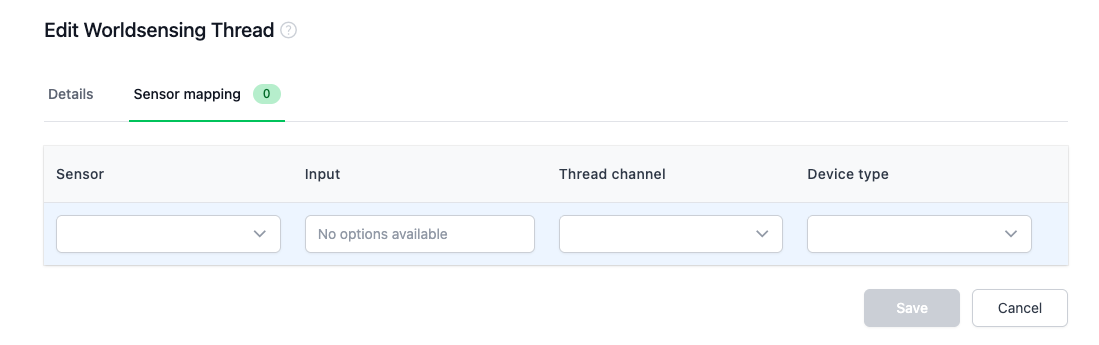
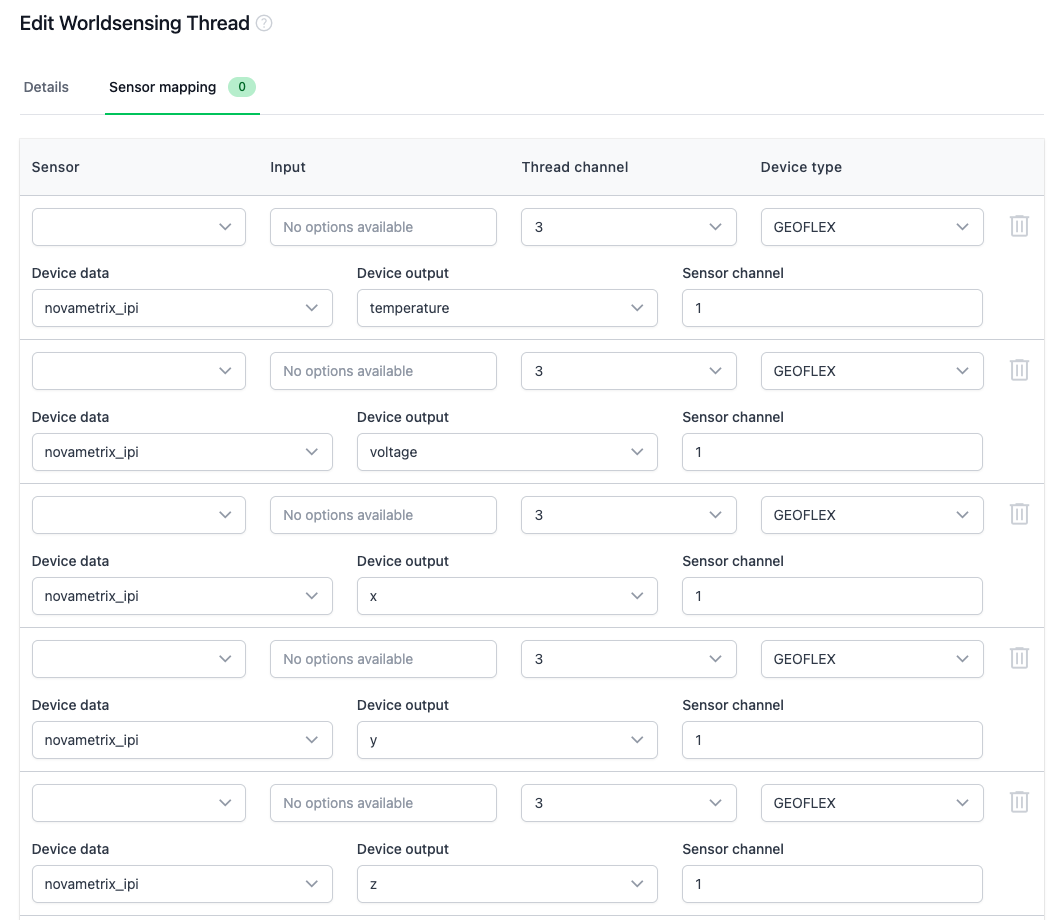
Map the sensor inputs to the incoming MQTT broker messages. This will be blank initially, however as the messages arrive from the MQTT broker these mappings will be automatically created with blank mappings. You will still need to map the Sensor and Input.