Ackcio
This guide walks through connecting Ackcio devices to the platform using FTP file uploads. You configure upload on the Ackcio gateway so measurement files are pushed to an FTP server, which the platform then reads automatically.
Note: We recommend creating a Blueprint and your Sensors first, so that when you map the data source labels at the end of this guide, you have sensors to connect to.
1. Configure the Ackcio gateway to push via FTP
Log in to your Ackcio gateway. In the Upload panel (shown as Upload Mode in the gateway UI), click the three horizontal dots (⋯) to open the upload settings. Select FTP.
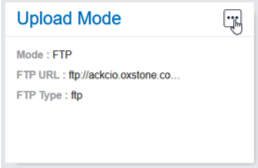
When FTP is enabled, enter the FTP connection details and destination: URL (server address), encryption, port, username, password, and folder (remote path on the server). Choose which data types to upload (for example sensor, node, network, heartbeat) and any advanced options your deployment needs, then click Save.
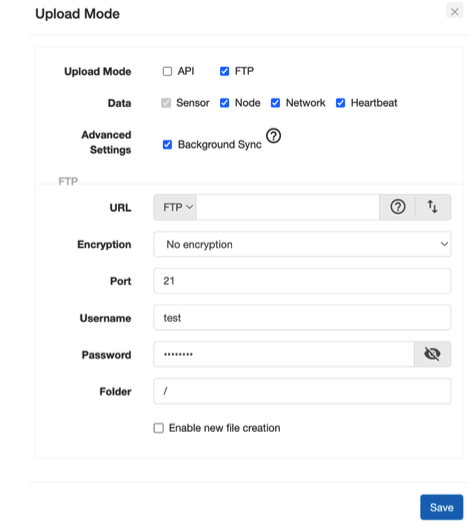
Use the FTP server details that you have set up for the platform integration. Once saved, the gateway will push files to the FTP server according to your configuration.
2. Add a data connection
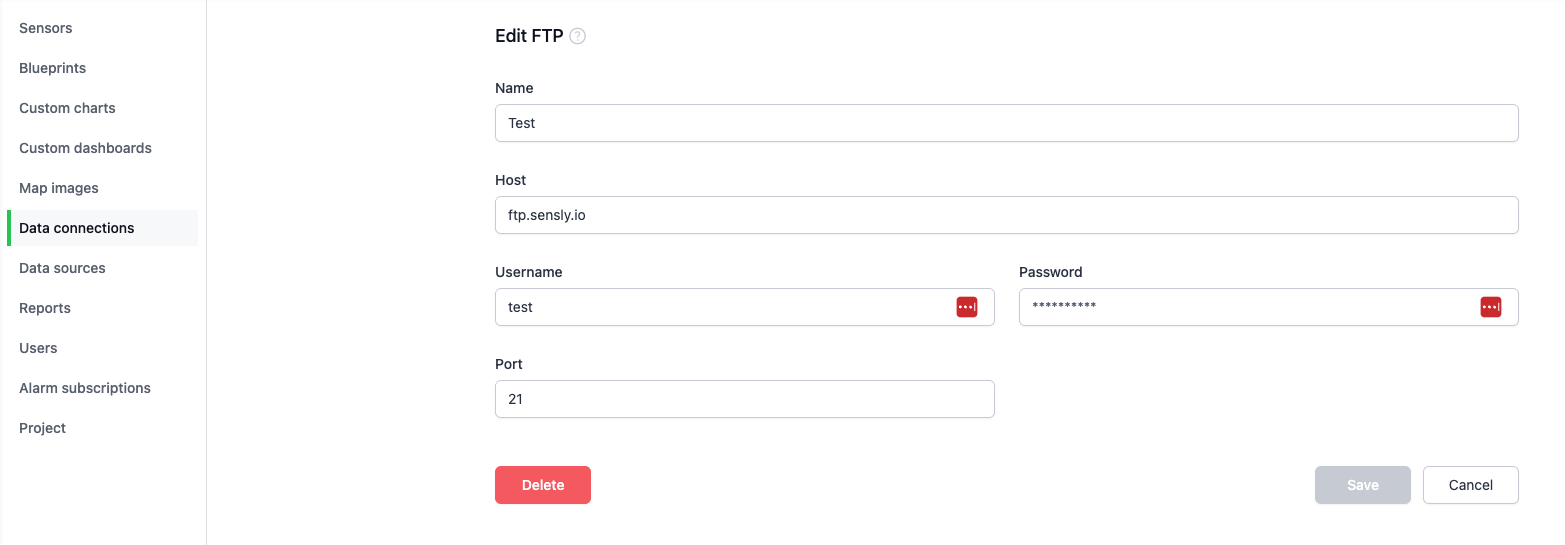
In the Sensly portal, add a data connection and choose FTP. Enter the FTP server credentials for the server where the Ackcio gateway uploads its files.
3. Add a data source
Under Data sources, create a new data source using the FTP connection you created.
Specify the file path where the Ackcio gateway uploads the data file.

Set the schedule for when to check the FTP server for updated files.

4. Map the file
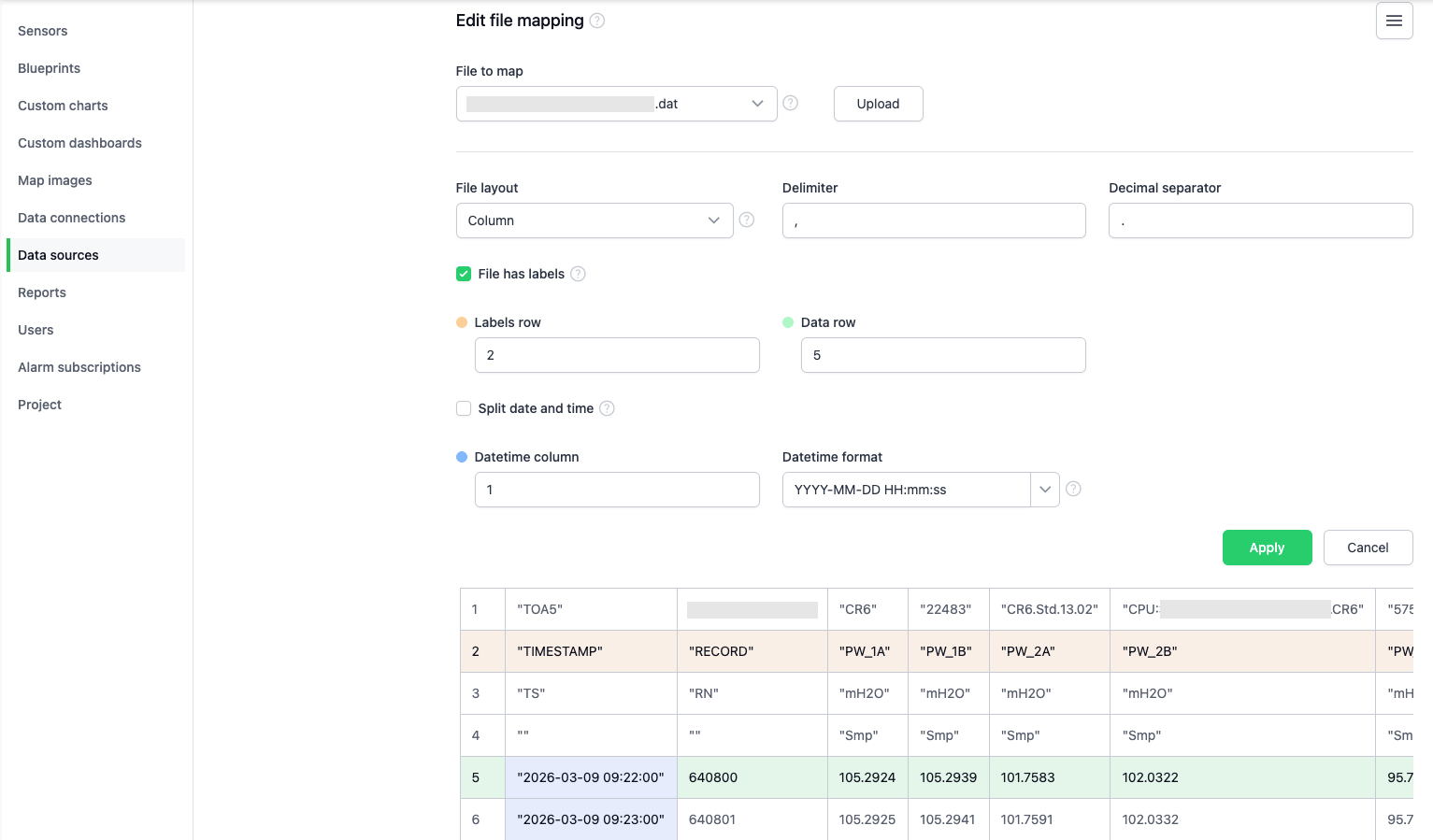
Configure the file by selecting the File to map from the directory. If only one file is found, it will be auto-selected.
Note: If additional files appear in the File to map dropdown that you do not want processed, update the File match string on the data source details page to filter them out.
Select the Labels row (the row that identifies each column for matching to sensor inputs) and the Data row (where the data starts, so the header is not processed). These rows may vary depending on how Ackcio formats your export file; choose the rows that match your file layout.
Select the Datetime column; the Datetime format will be auto-populated but can be edited if needed. The notation for datetime formats is described in 5. Datetime format in Data sources.
5. Map the sensor inputs
Map the platform sensor inputs to the corresponding columns in the Ackcio data file (for example displacement, tilt, temperature, or water level).
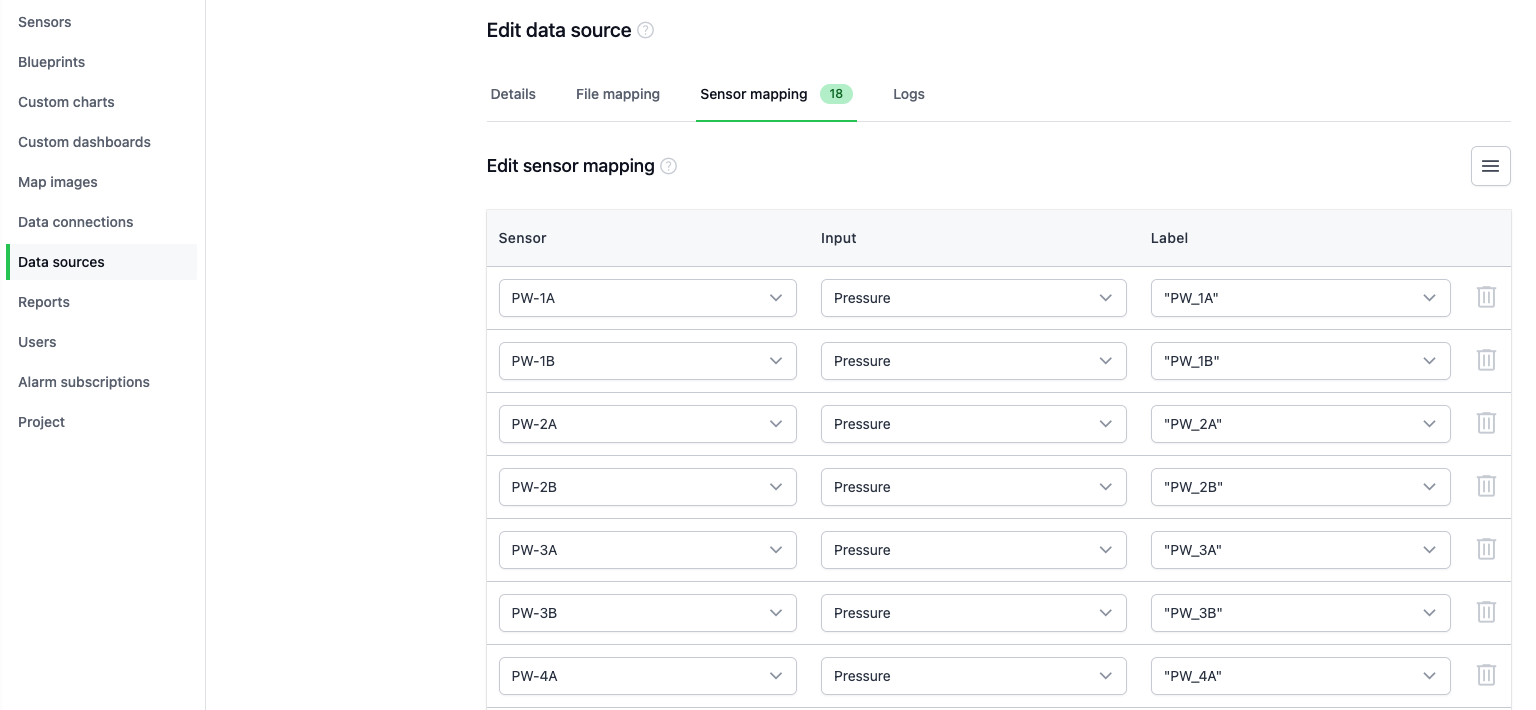
Once configured, the platform will automatically import new records from the uploaded files and update the sensor data.
Note: If additional sensors are mapped after a file has been processed, the data source will need to be re-run by reprocessing the data.